LinkedIn Text Formatting: How to Add Bold, Italic & Underline to Your Posts (2026)
LinkedIn has no bold button — but you can still format your posts. Here's how bold, italic, underline and cursive text really work on LinkedIn, when to use them, and the accessibility trade-off to know.
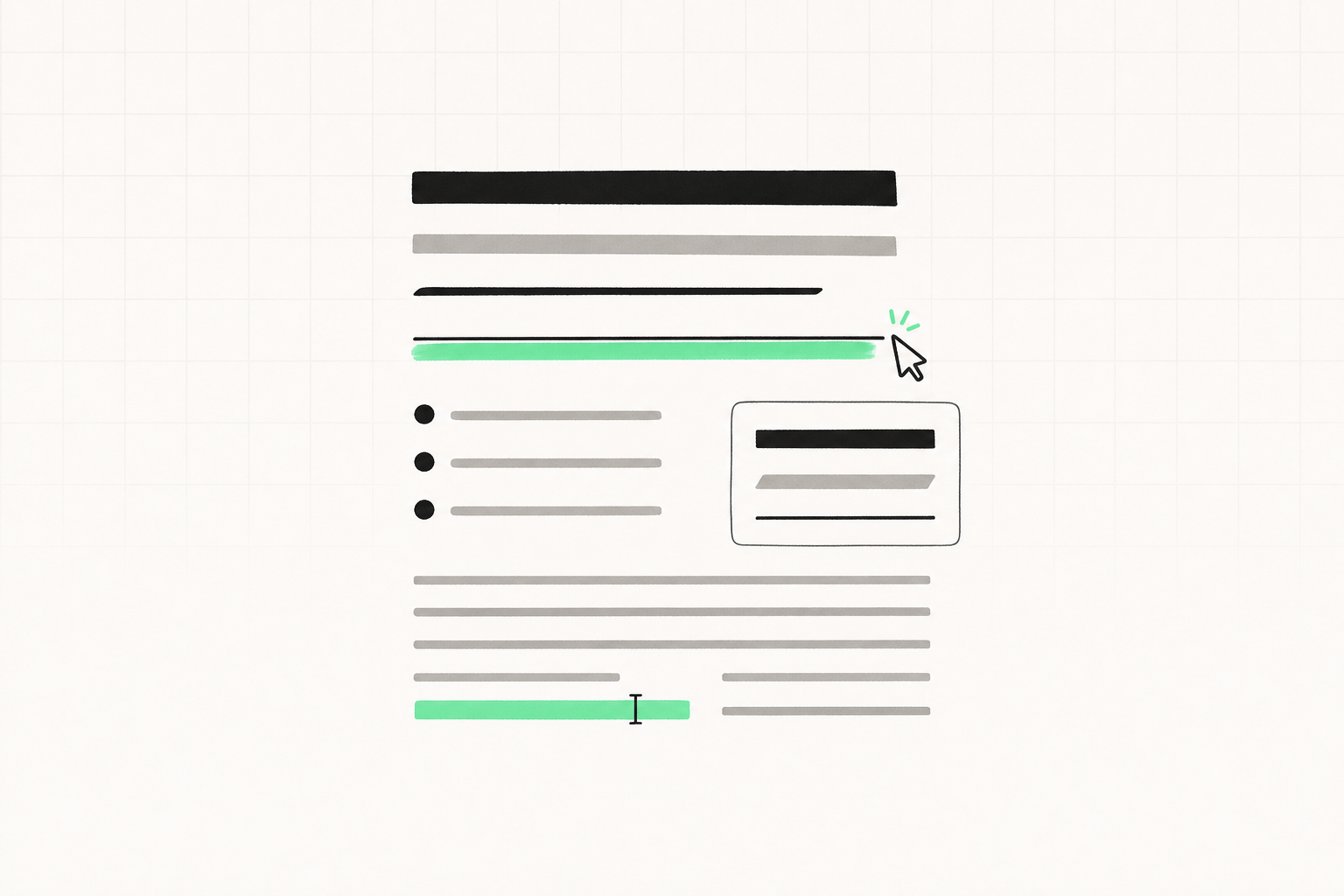
LinkedIn's post editor is deliberately plain. There's no toolbar, no bold button, no italics — just a box. So how do all those posts with bold hooks and italic asides pull it off?
The trick is Unicode, and once you understand it, formatting your posts takes about ten seconds.
Why there's no bold button
LinkedIn stores post text as plain text, not rich text (the way Word or Google Docs would). That keeps posts consistent across every device and app. The downside: you can't apply real formatting.
How "bold" text on LinkedIn actually works
Unicode — the global standard behind every character on your screen — includes a set of Mathematical Alphanumeric Symbols. These are separate characters that happen to look like bold, italic, or cursive versions of normal letters.
When you paste one of these characters into LinkedIn, it isn't formatting — it's a different character that looks bold. That's why it survives copy-paste anywhere: your headline, About section, posts, comments, even your name.
You don't need to memorize any of this. Paste your text into our free LinkedIn bold text generator, pick a style, copy, and paste it into LinkedIn. Done.
The styles you can use
- Bold — the workhorse. Best support across devices. Use it for hooks and subheads.
- Italic — great for asides, quotes, or emphasis on a single word.
- Bold Italic — use sparingly, for a single standout line.
- Underline and ~~strikethrough~~ — built from combining characters; nice for effect but weaker device support.
- Cursive / script — eye-catching, but the least reliable across older phones.

When formatting helps (and when it hurts)
Formatting is a tool for scannability. A long post is easier to read with one bold subhead every few paragraphs, guiding the eye. A bold first line can make your hook pop before the "…see more" cutoff — check where that cutoff lands with our character counter.
But there's a real cost: accessibility. Screen readers may read Unicode bold characters letter-by-letter, or skip them, or announce them as "mathematical bold small a." For someone using assistive technology, a fully bolded post can be unreadable.
So the rule is simple: format for emphasis, never for your whole message. Keep your core point and any critical information — dates, links, instructions — in plain text. Use bold and italic to highlight, not to decorate.
A quick formatting playbook
- Write your post in plain text first.
- Identify the one line that's your hook and maybe two subheads.
- Bold those, and only those, with the text formatter.
- Add line breaks between short paragraphs so it breathes.
- Read it back on mobile — that's where most people will see it.
Good formatting is invisible. If a reader notices your styling before your message, you've used too much.
Do it as part of writing, not after
Formatting is the last 5% of a good post — the first 95% is having something worth reading and a hook that earns the click. If writing consistently is the part that keeps slipping, LinkGenie helps you draft, format, and schedule strong posts in about 15 minutes a day, so the whole thing gets easier to keep up.
Want the deeper mechanics of what gets seen in the first place? Read how the LinkedIn algorithm actually works.